
Fleet Rebranding Timeline Builder With Your Own Stage Allowances
Work backward from a target handover date using calendar-day allowances you enter for six project stages. Use the result to expose dependencies and review assumptions; it is a planning model rather than a production schedule or booking confirmation.
Build a Backward Rebranding Timeline
Entries stay in this page and are not saved or sent. Download a CSV before leaving. Use the quote form separately to share project information.
Enter your own calendar-day allowances and target handover date. The backward plan assumes consecutive stages with no automatic holiday, weekend, capacity or supplier allowance. These are planning dates, not booked appointments.
No download books work, approves artwork or sends an enquiry. Confirm scope, conditions and dates through the actual project review.
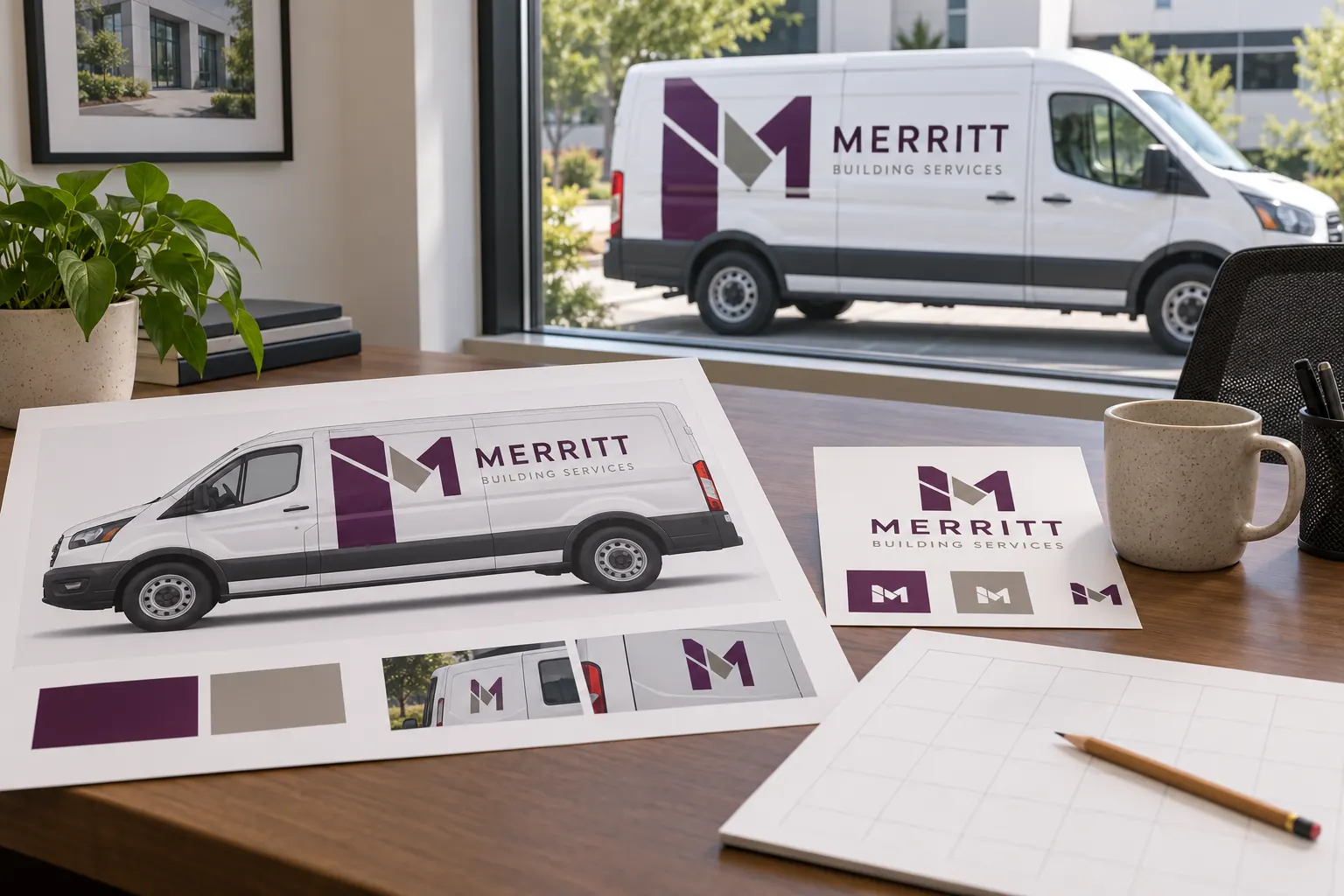
Illustrative planning concept; not customer photography, actual tool output or a verified project record.
Choose a target that has a clear business meaning
Identify what the target handover represents: a first accepted batch, a full fleet changeover or another defined milestone. A company launch date and the return of every vehicle to service may be different events. Write that distinction in the project reference and notes before entering a date.
The tool works backward from the selected handover point. It cannot decide whether the target is feasible or whether the actual supplier and fleet can meet it. Keep the target as a planning assumption until scope, artwork, surface readiness and availability have been reviewed. A useful model explains what would need to happen before that date rather than converting an aspiration into an unsupported commitment.
Enter six deliberate calendar-day allowances
The stages cover brief and inventory, identity and configuration design, business review and artwork approval, production planning and preparation, installation and contingency, and inspection and handover. Enter your own whole-number allowance for each stage. Zero is allowed when a stage has no additional modeled duration, but that is an explicit assumption that deserves review.
Do not treat the blank inputs as recommended turnaround times. This tool supplies no supplier durations. Combine related tasks only when that matches the intended planning model and record what the allowance covers. If work happens in parallel, the simple consecutive model may not represent the actual sequence; use the notes to flag that difference for the person developing the agreed project schedule.
Understand the backward arithmetic and date boundaries
Each stage finish becomes the boundary for the preceding stage. The tool subtracts the entered number of calendar days and displays the resulting start and finish dates. It uses date-only arithmetic rather than the browser local clock for these calculations, keeping the planned dates stable across time zones.
For an illustrative example, a November 30 target with one day entered for each of six stages produces a November 24 starting boundary. That example demonstrates the arithmetic and is not a recommended six-day rebrand. The displayed dates are consecutive boundaries, not a detailed assignment of working hours. Review them with the actual project team before interpreting a stage as an accepted operational window.
Add the calendar realities the tool does not know
The model does not automatically include weekends, holidays, supplier hours, transport, capacity, coating readiness or the time taken for unresolved approvals. Those details can materially affect the real plan. Include suitable allowances and notes from the responsible team instead of assuming that a mathematically valid start date proves the sequence is workable.
The installation scheduling guide explains the broader coordination. The vehicle release planner records unit or batch availability. Use those routes to distinguish project-stage timing from actual asset release. A single whole-fleet target may still require several different vehicle windows and configuration-specific decisions.
Put readiness gates between the stages
Before moving from one stage to the next, define the information or approval required. The brief stage needs an accurate asset list and photographs; artwork approval needs the accepted message and fitted layouts; installation needs the agreed surface and access conditions. The timeline does not inspect whether those gates have been met.
Use the rebranding readiness checklist to organize that work. Name a decision owner and record unresolved items. If a gate is not ready, revise the plan instead of implying the next task can proceed automatically because a date appears in the output. This keeps the model connected to actual project responsibilities and avoids a schedule that looks complete while critical information remains missing.
Use scenarios to expose the effect of changed assumptions
Change an allowance when the responsible team identifies more review time, a preparation dependency or a larger contingency. Compare the new starting boundary with a saved earlier version. This helps the business see which assumptions affect its target and where a decision is needed before the project can be confirmed.
Do not shorten allowances simply to make the output fit a preferred date. Discuss scope, phases or the milestone definition if the model shows an impractical starting point. A smaller first batch may have a different meaning from a completed fleet launch, and that difference must be explicit. The worksheet is useful when it reveals uncertainty, not when it hides unresolved work behind optimistic entries.
Export the model and confirm the actual schedule separately
The CSV retains the entered target and allowances, the calculated stage boundaries and the notes. Download it before leaving, because the page does not save or send the entries. Keep a dated version with the asset list, accepted scope and decision records so the team can identify which assumptions produced the current model.
Use the quote route separately to share project details and discuss feasibility. A downloaded timeline does not reserve installation, approve production or confirm delivery. The project review must still establish the actual work and appointments. For a larger changeover, fleet graphics management provides the ongoing route for keeping new units, repairs and later phases aligned with the accepted identity.
Frequently Asked Questions
Turn Your Vehicle Details Into a Clear Project Brief
Send current photographs, vehicle quantities, logo files, coverage preferences and timing. Identify old graphics and paint concerns so the project review can address the actual equipment.
Explore planning resources or request your commercial wrap quote.