
Fleet Vehicle Inventory Worksheet for Graphics Projects
Build a vehicle-by-vehicle record before planning a fleet graphics rollout. Add the body details, photo references, condition questions and release windows that distinguish one unit from another, then download a CSV to keep with the project brief.
Build Your Fleet Inventory
This worksheet does not send or save its entries. Download a copy before leaving. Use the quote form separately to send your project details.
Downloading does not submit an enquiry or reserve an installation date. Keep your copy and provide relevant details through the quote form when ready.
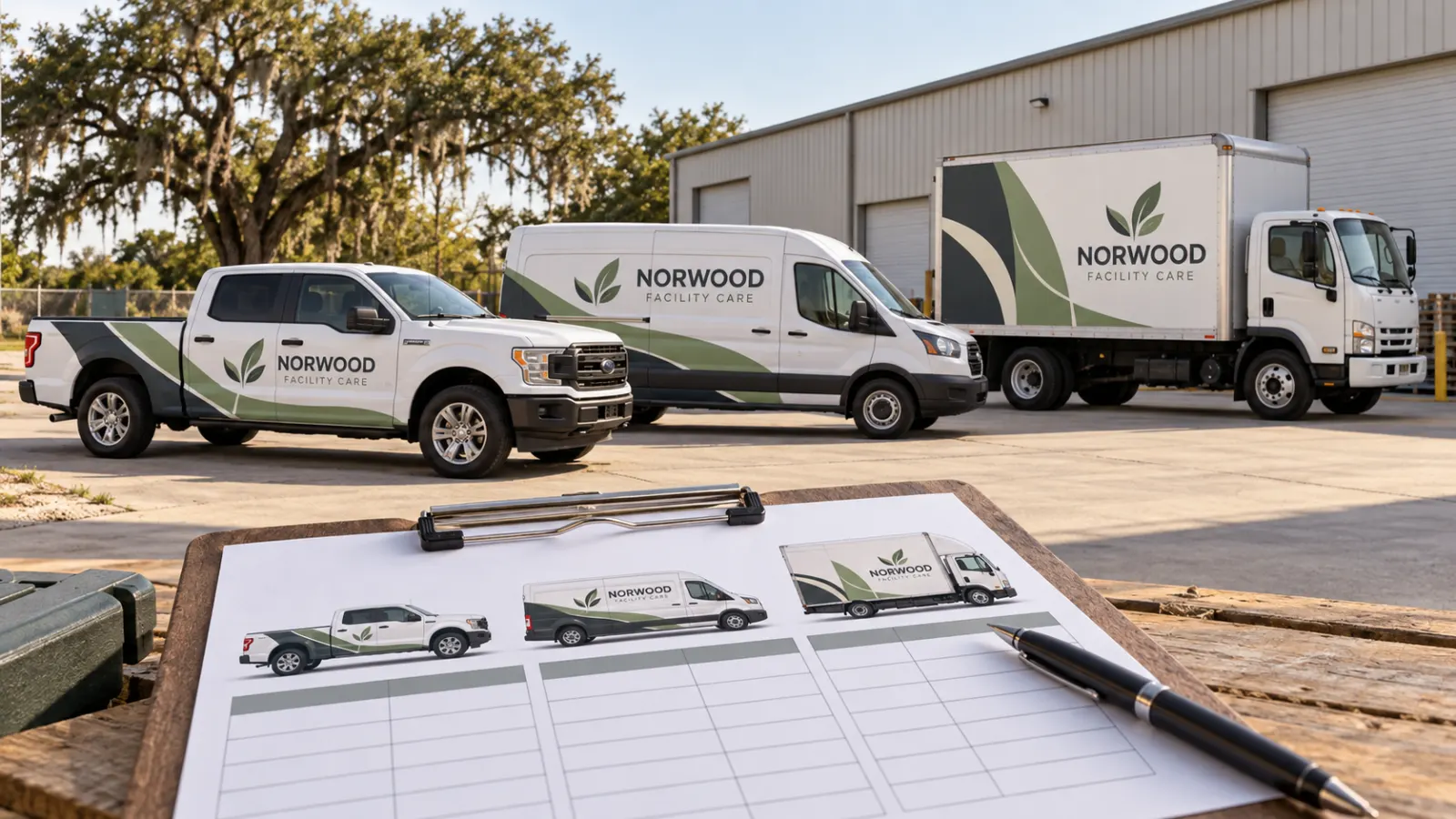
AI-generated illustrative planning scene with fictional business branding; not documentary customer or shop photography.
Give the fleet plan a vehicle-level reference
The fleet planning guide explains program decisions such as identity, approvals and rollout. This worksheet handles a narrower task: recording the actual units that need to be considered. Start with a project reference and the person coordinating the list, then add a row for each vehicle or clearly defined configuration.
A fleet total without body details can hide important differences. Five vans may include different wheelbases, roof heights and doors. A truck cab may carry an aftermarket body not described by the chassis name. The inventory makes those differences visible before artwork or a quote assumes all units are identical.
Use identifiers that your team can verify
Enter the internal unit reference your business uses to distinguish the vehicle. Keep the record understandable to the people providing photographs, approving artwork and arranging delivery. Avoid placing unnecessary personal or sensitive information in a planning worksheet. A useful internal reference is often enough to connect the row to your own fleet system.
Assign one person to maintain the list and verify changes. If a vehicle is replaced or reassigned, update the row rather than relying on an old email thread. The worksheet does not check identifiers against your business records, so accuracy remains an internal review task. Download dated versions when the equipment list changes.
Record the body configuration rather than only the model name
Include the year, make and model, then explain the usable body: roof height, wheelbase, box length, bed type, service body or trailer configuration as appropriate. Identify door locations and accessories that affect the graphic area. If a dimension is unknown, record the uncertainty rather than guessing a measurement.
Use the vehicle directory to organize the categories. A service-body truck, delivery van and commercial trailer need different reference details. The worksheet helps collect those details without pretending a single generic template describes every unit.
Connect each row to current photographs
Photograph both sides and the rear, then add the front and close views where useful. Show the normal parked configuration with equipment safely stowed. Include racks, handles, hinges, access panels and anything that obscures a graphic area. Current photos are more useful than catalog images of similar vehicles.
Enter filenames or a folder reference in the photo field. This worksheet does not upload, store or validate the images; it records where your team keeps them. Use a naming convention that connects each photo set to the unit. Confirm the files can be located before assuming another reviewer has access to the same evidence.
Make condition questions visible before scope approval
Record existing vinyl, residue, dents, corrosion, peeling paint and known repairs. Use factual descriptions and photographs rather than diagnosing a cause from appearance alone. The inventory is a prompt for review, not a surface inspection or a guarantee that a vehicle can be wrapped. Suitability and preparation still need assessment.
Separate a known body change from a condition question. A replacement door may alter both the artwork reference and the finish history. Old graphics may require a distinct removal scope. The cost guide explains why those details affect a meaningful comparison of proposals instead of remaining hidden inside a fleet-wide allowance.
Record release windows without inventing installation dates
Use the final field to note priority and when the vehicle could be released from work. Distinguish a desired window from a confirmed arrangement. Identify route-critical or specialist units that need a separate operating plan. A simple list of preferences can make scheduling discussions more specific without promising availability.
Clarify who manages delivery, access and collection outside the worksheet as the project develops. The installation scheduling guide connects those responsibilities with the wider rollout. Do not treat an entered date or a downloaded CSV as a reservation; the actual scope and schedule still need agreement.
Download the record and use it in a complete brief
Add or remove vehicle rows as needed, then download the CSV before leaving the page. The worksheet itself does not save entries or send the record to Pelican Wraps. Keep the file with your dated photographs and approved brand sources. A downloaded version gives your team a reference for later corrections and additions.
Send a separate fleet quote request with quantities, the relevant vehicle details, logo files, coverage preferences and timing. Identify what remains unknown. The mixed-fleet image is a fictional branding concept created for this page; it is not a customer fleet or evidence of a completed rollout. Your inventory should describe your actual vehicles.
Frequently Asked Questions
Turn Your Vehicle Details Into a Clear Project Brief
Send current photographs, vehicle quantities, logo files, coverage preferences and timing. Identify old graphics and paint concerns so the project review can address the actual equipment.
Explore planning resources or request your commercial wrap quote.